Skip to content

Everything a monthly payroll needs, and a record of all of it.

Nxtpay covers the month from employee records to a paid, locked run. Here is each part, with what it does today.

Employees

Your team, with their pay history.

Add people one by one or import your existing salary sheet: match its columns once, see every row checked before anything is saved, and fix the rows that need it. Salary changes are kept with the date they took effect and why. Leavers are recorded, not deleted.
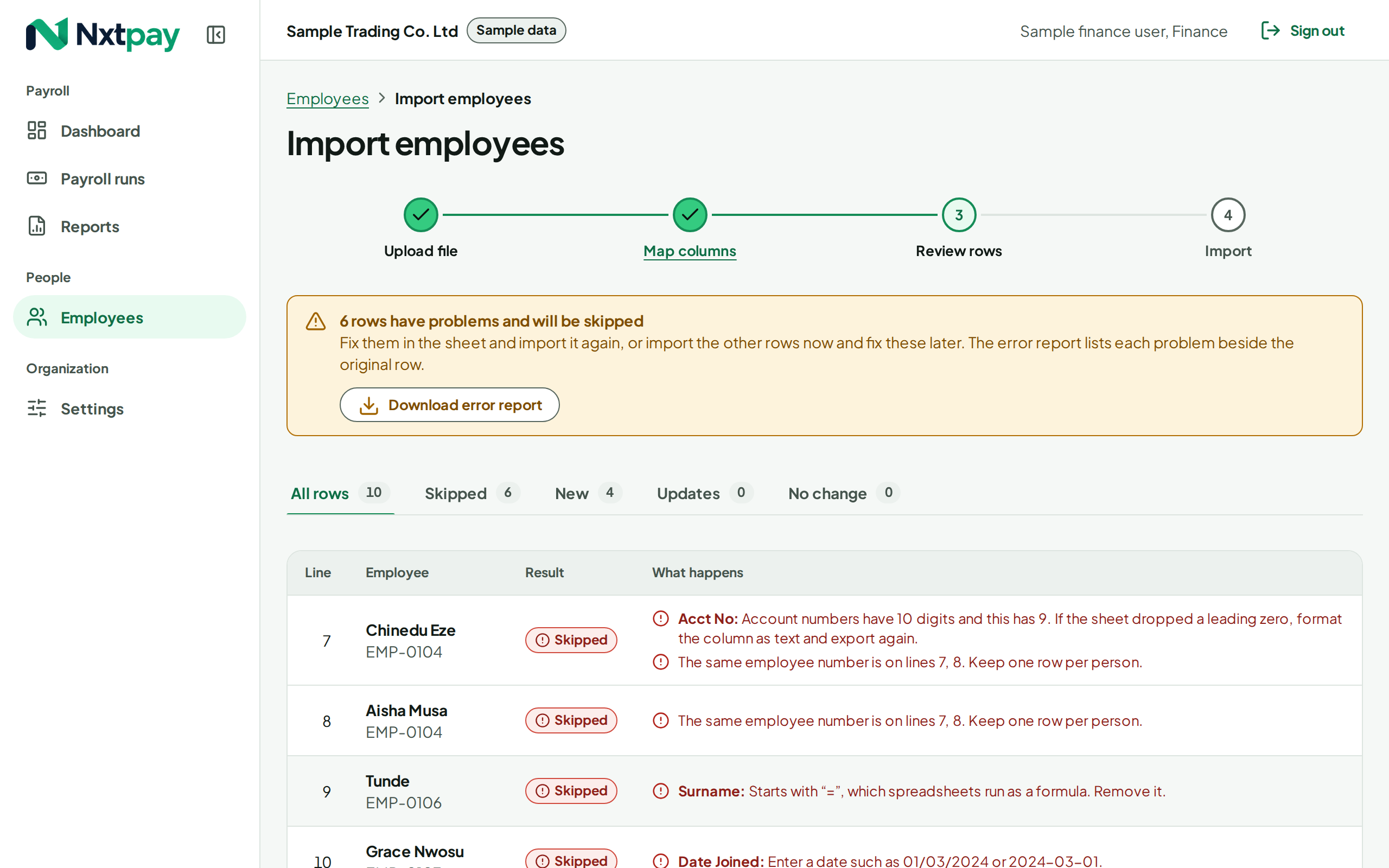
Reviewing an employee import: each row shows whether it will be created or updated, and rows with problems are listed with the fix

The monthly run

Start a month in a minute.

A run starts from your employee records for that month. Add a one-off adjustment where someone needs it, such as a bonus or a correction, with a reason.

Deductions

Deductions, from your accountant's figures.

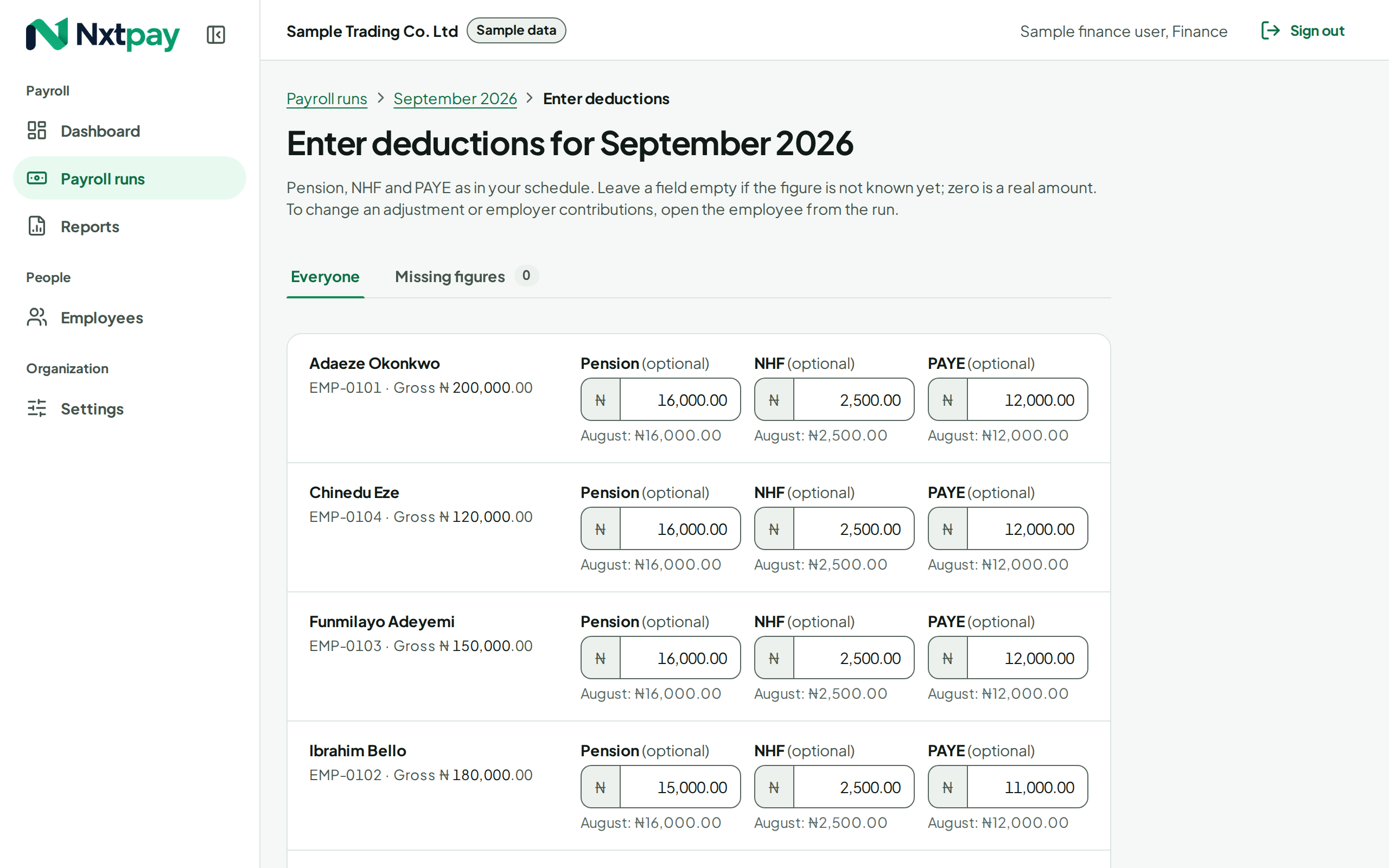
Enter PAYE, pension and NHF for each person, import them from the schedule your accountant already produces, or copy last month's for people whose pay did not change. Copied figures are marked, so the reviewer knows they were not re-entered. Zero is a real figure; a missing one stops the run until it is filled in.

Nxtpay does not calculate PAYE, pension or NHF today. That comes later, once an accountant has signed off its rules.

Entering a month’s PAYE, pension and NHF for each employee, with figures copied from last month marked

Review

What changed comes first.

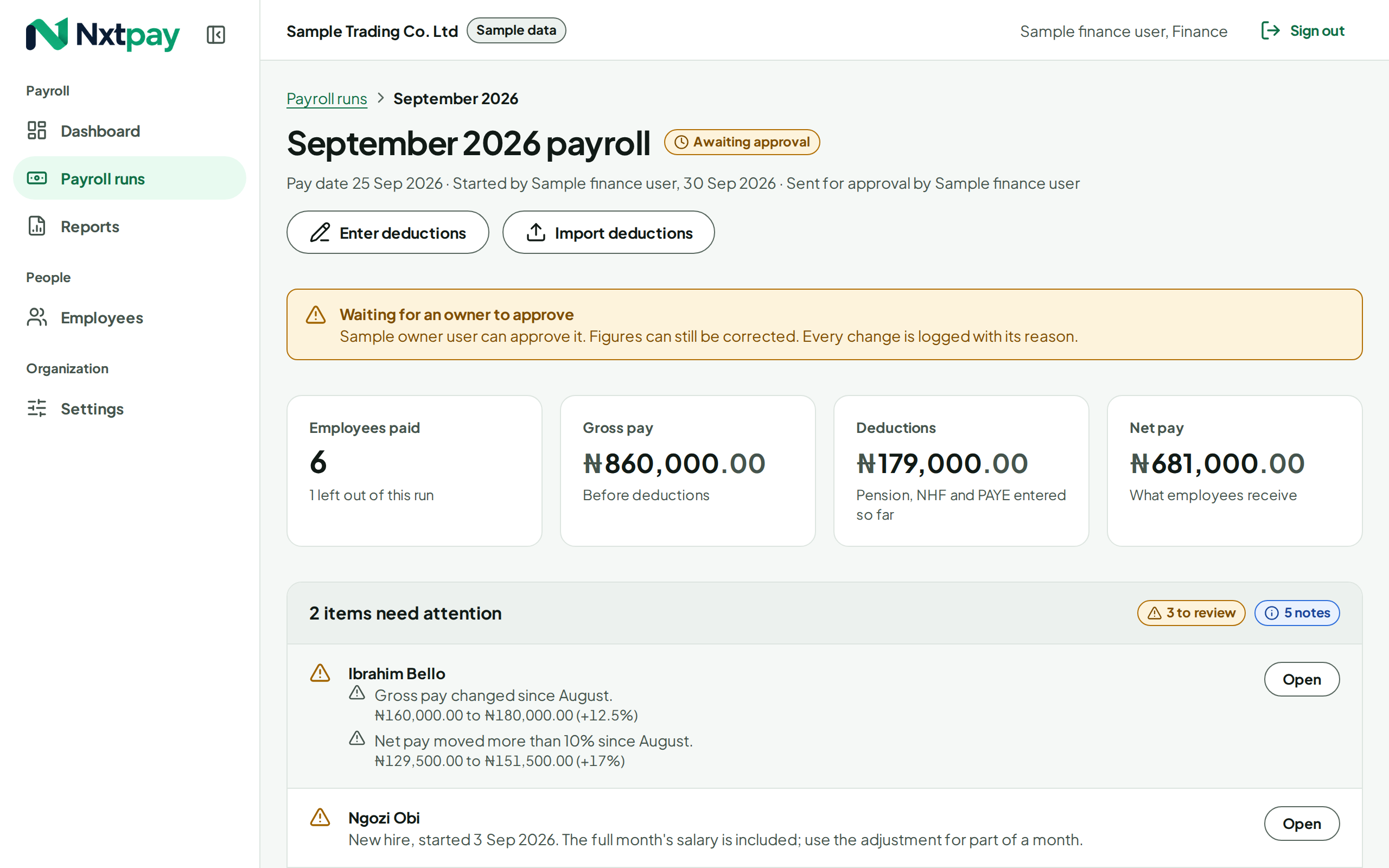
Each run opens with its exceptions: new hires, leavers, salary changes, new bank details, deductions not entered or copied, and anything that moved more than your threshold since last month. Problems that must be fixed, such as missing bank details or net pay below zero, block the run until they are. The full table follows, sortable, each row open to its breakdown, with the totals always in view.

Reviewing a payroll run: exceptions such as new hires and changed figures listed first, the totals above the full table

Approval

A second person, and a lock.

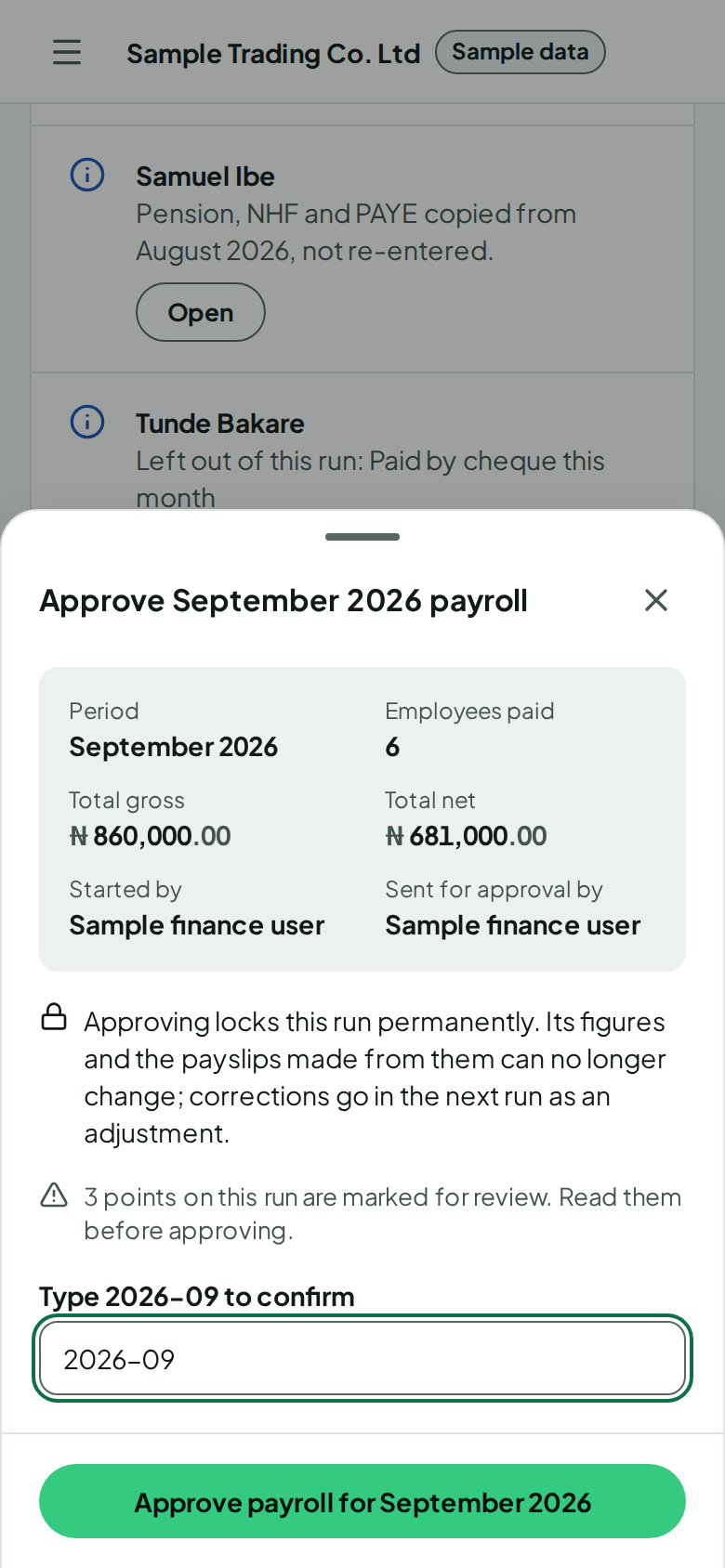
The person who prepared a run cannot approve it. The approver sees the totals and who prepared it, reads that approval is permanent, and types the month to confirm. On approval every figure is worked out again and compared with what was reviewed; if anything differs, approval stops and shows what changed.

Approving a payroll run on a phone: the totals, who prepared it, and a field to type the month to confirm

Payslips and the bank file

Ready to pay, ready to share.

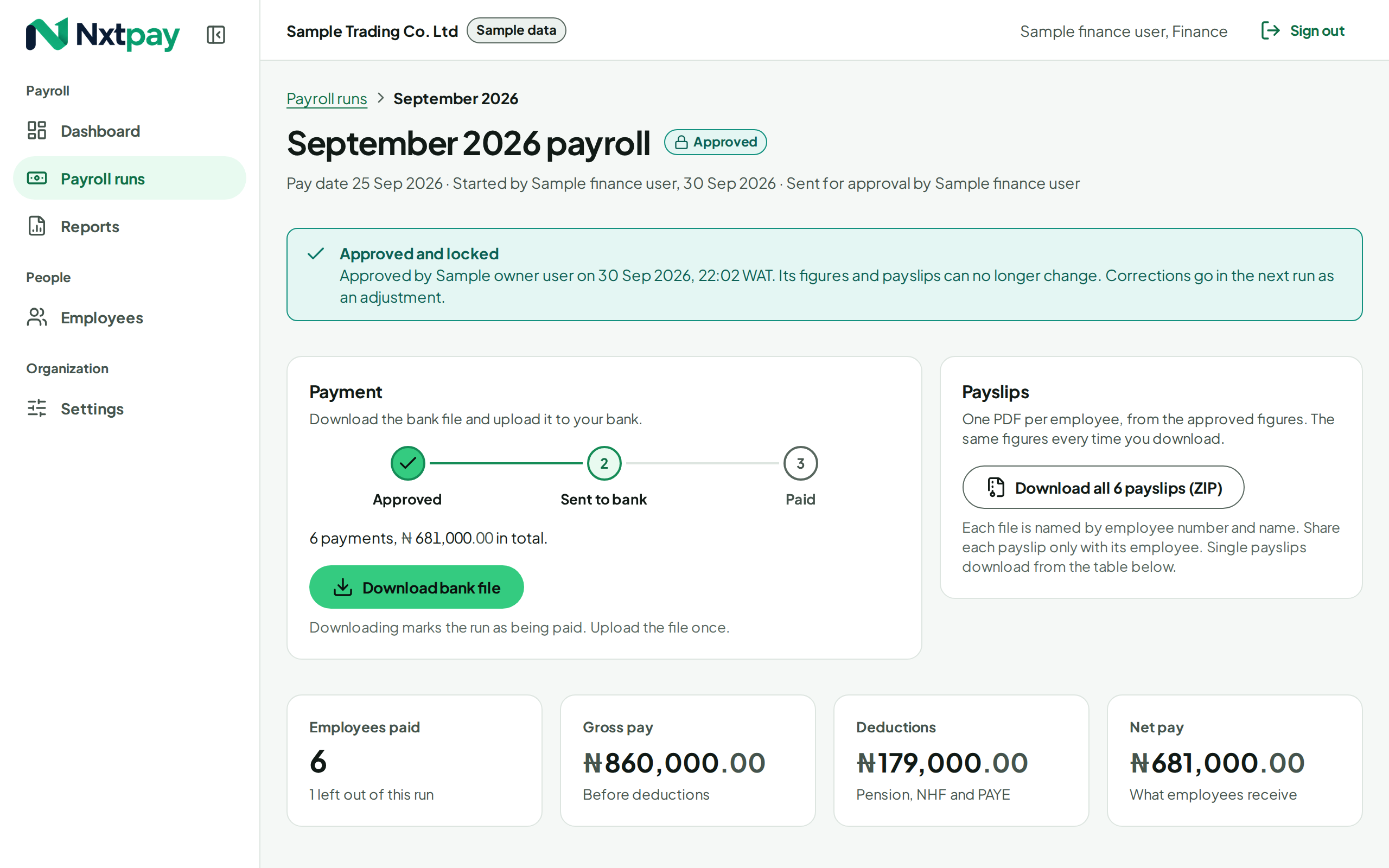
Every employee gets an A4 payslip PDF that reads clearly in black and white. Download one, or all of them together. The bank file is set up for your bank's bulk upload, and it pays the accounts that were approved, not whatever the records say by the time you download it. Downloading it twice needs a clear confirmation, because uploading twice pays everyone twice.

An approved, locked payroll run with its payslips and bank file ready to download

Reports

Totals you can hand to your accountant.

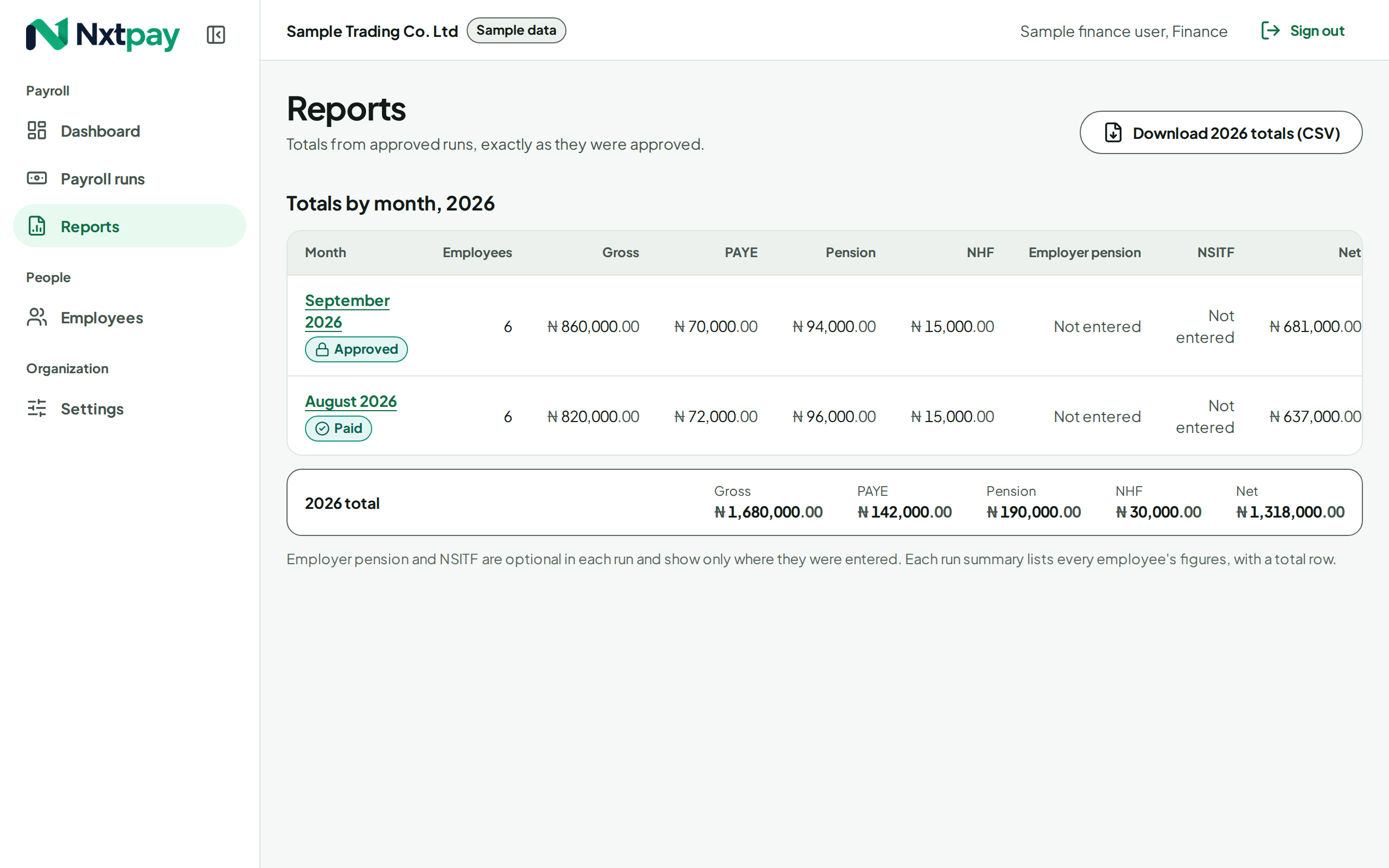
PAYE, pension, NHF and, where you entered them, employer pension and NSITF, by month and by year, downloadable as spreadsheets. Every total is added up from the approved payslips and checked against the run to the kobo. Your dashboard lists remittances coming due, once your accountant has confirmed your dates.

Reports: PAYE, pension and NHF totals by month, each checked against its approved run

People and permissions

Everyone sees what their job needs.

Three roles: owners approve and manage users; finance prepares runs and downloads bank files; HR manages employee records and never sees pay. Owners can sign someone out everywhere, see their devices, or suspend their access.

A record of everything

Who did what, and when.

Every change to employees and payroll, every approval and every download of pay data is written to an audit log that nobody can edit or delete, readable by owners and finance.

Email and phone

Told when it matters.

Emails when a run is waiting for approval, approved or sent back, when bank details change, and before a pay date. They never contain amounts or account numbers. Owners can add Nxtpay to their phone's home screen and approve from there.

See your own payroll in Nxtpay.

Bring last month's salary sheet and deductions schedule. We'll walk through a run with you.

Book a demo